Exporting
GEDCOM, PDF, and read-only share links.
Export as GEDCOM
GEDCOM (.ged) is the standard genealogy exchange format, compatible with Ancestry, MyHeritage, MacFamilyTree, Heredis, and others.
- In the sidebar open Settings, then the Export tab.
- Click Export as GEDCOM.
- The
.gedfile downloads automatically.
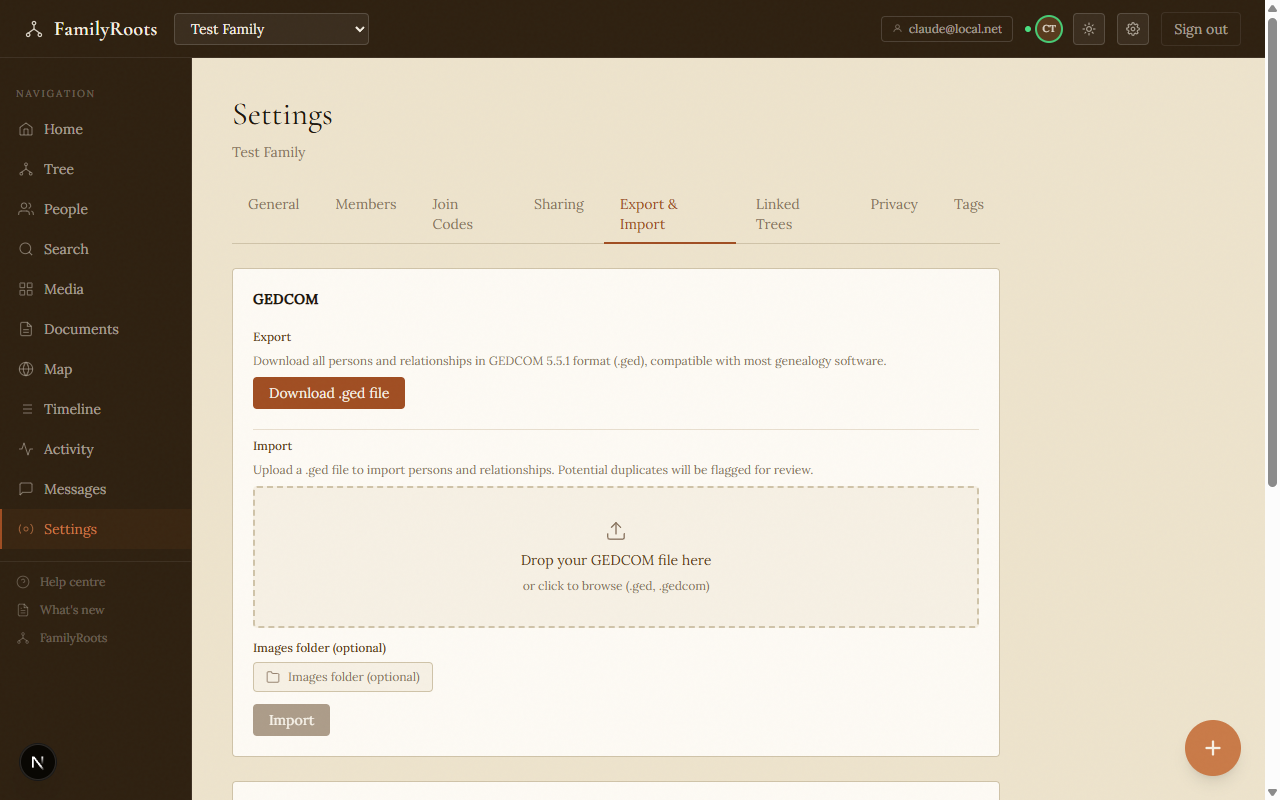
The Export & Import settings tab showing GEDCOM, PDF, and database export options.
Export as PDF (family book)
The PDF export generates an illustrated document of all group members, with photos where available.
- In Settings › Export, click Export as PDF.
- Wait a few seconds for the document to generate.
- The PDF downloads automatically.
Import a GEDCOM file
Already have a tree in another application? Import it in a few steps.
- In Settings › Export, click Import GEDCOM.
- Select your
.gedfile. - An import preview is shown for review.
- Confirm to add people and relationships to your group.
Share a read-only link
Share your tree with people outside the group — no FamilyRoots account required.
- In Settings › Sharing, enable the Public share link.
- Copy the link and share it by email, messaging, or social media.
- Visitors see the tree in read-only mode. Living people remain masked.
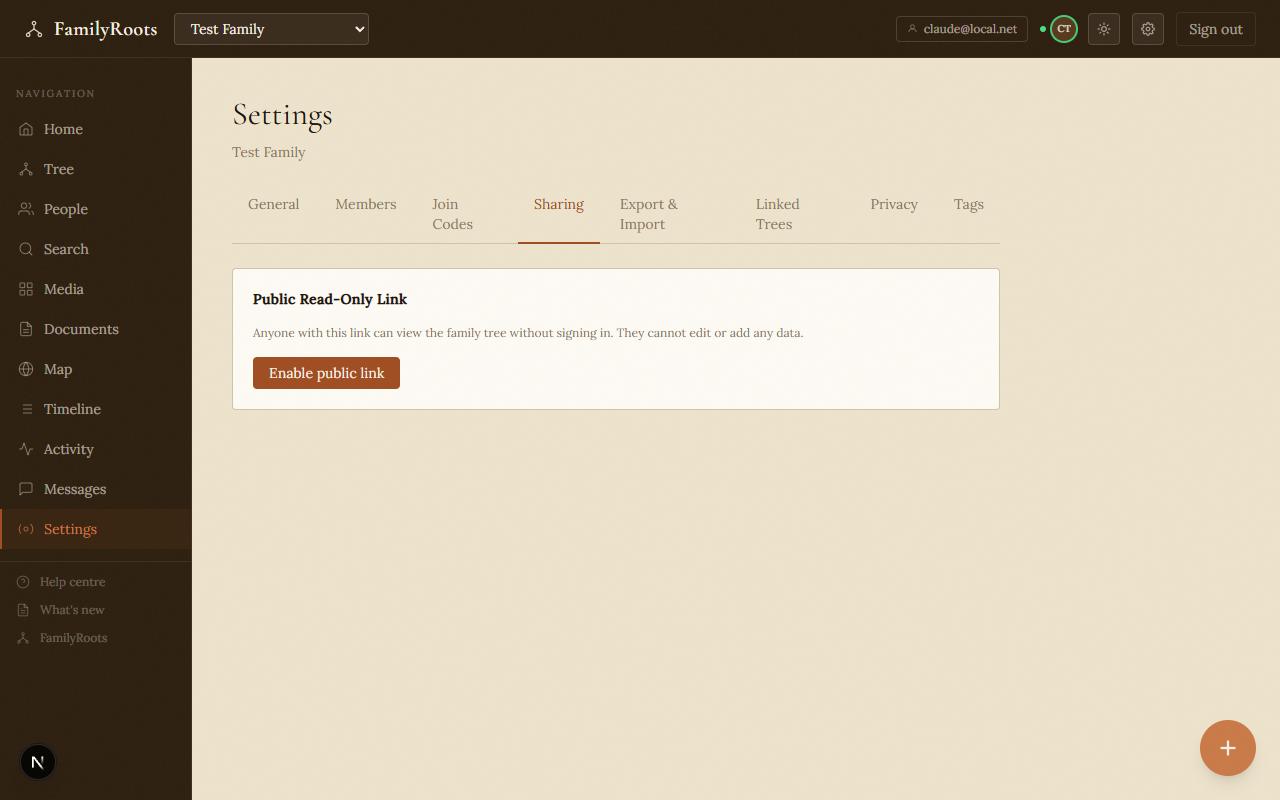
The Sharing settings tab with the public read-only link toggle.