Managing members
Add members to your group and manage their access levels.
The three roles
| Role | Permissions |
|---|---|
| Administrator | Full control: invitations, settings, deleting data, pinning messages |
| Editor | Add and edit people, media, and events |
| Viewer | Browse the tree, comment and react — no editing |
Invite by email
- In the sidebar open Settings, then the Members tab.
- Click Invite a member.
- Enter the email address, choose a role, and confirm.
- The person receives an invitation email with a link valid for 72 hours.
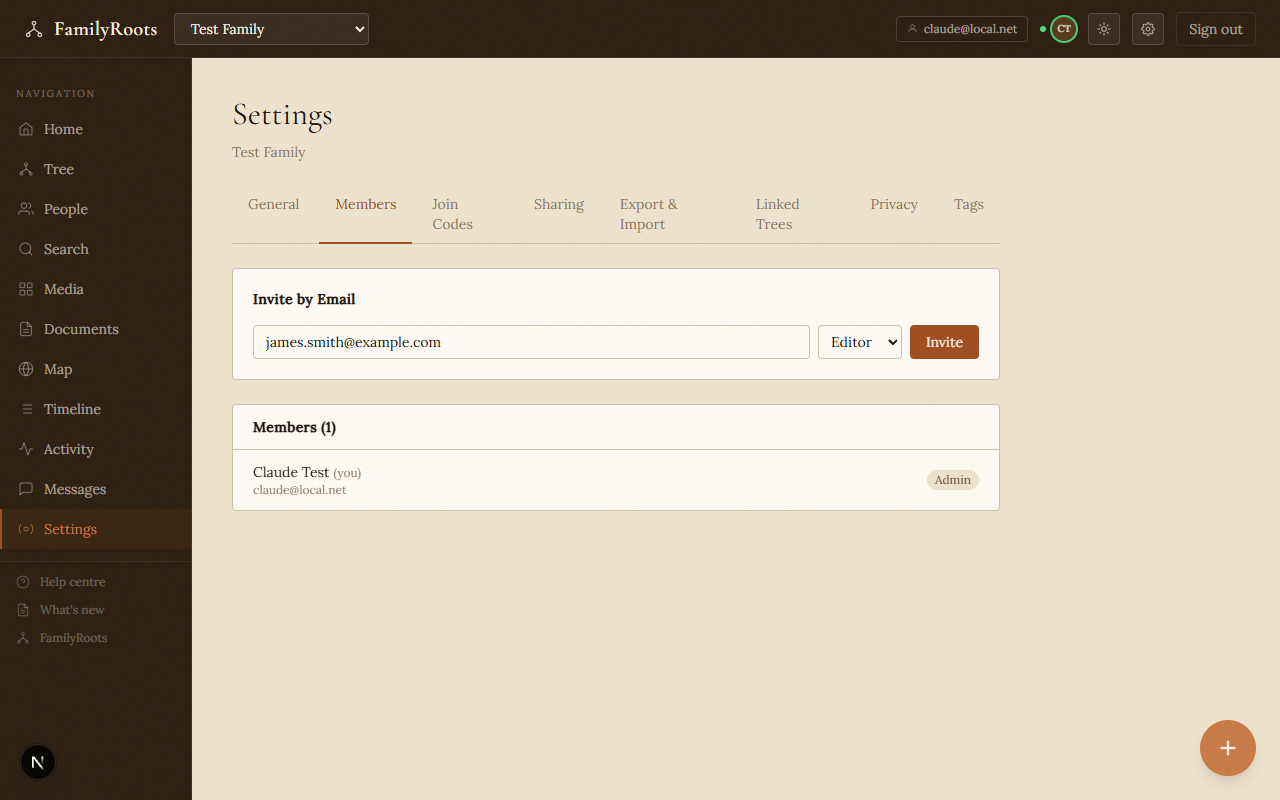
The Members settings tab with the invite by email form.
Invite by code
- In Settings › Members, click Generate an invitation code.
- Share the code with the person (by phone, in person, etc.).
- They sign in to FamilyRoots and enter the code on the Join a family page.
Change a member's role
- In Settings › Members, find the member.
- Click their current role to change it.
- Confirm.
Remove a member
- In Settings › Members, click Remove next to the member.
- Confirm.
Link a member to a person in the tree
Each member can be linked to their own profile in the tree. Their name then appears in the navigation bar.
- In Settings › Members, click the member's name.
- Click Link to a person and select the matching profile.
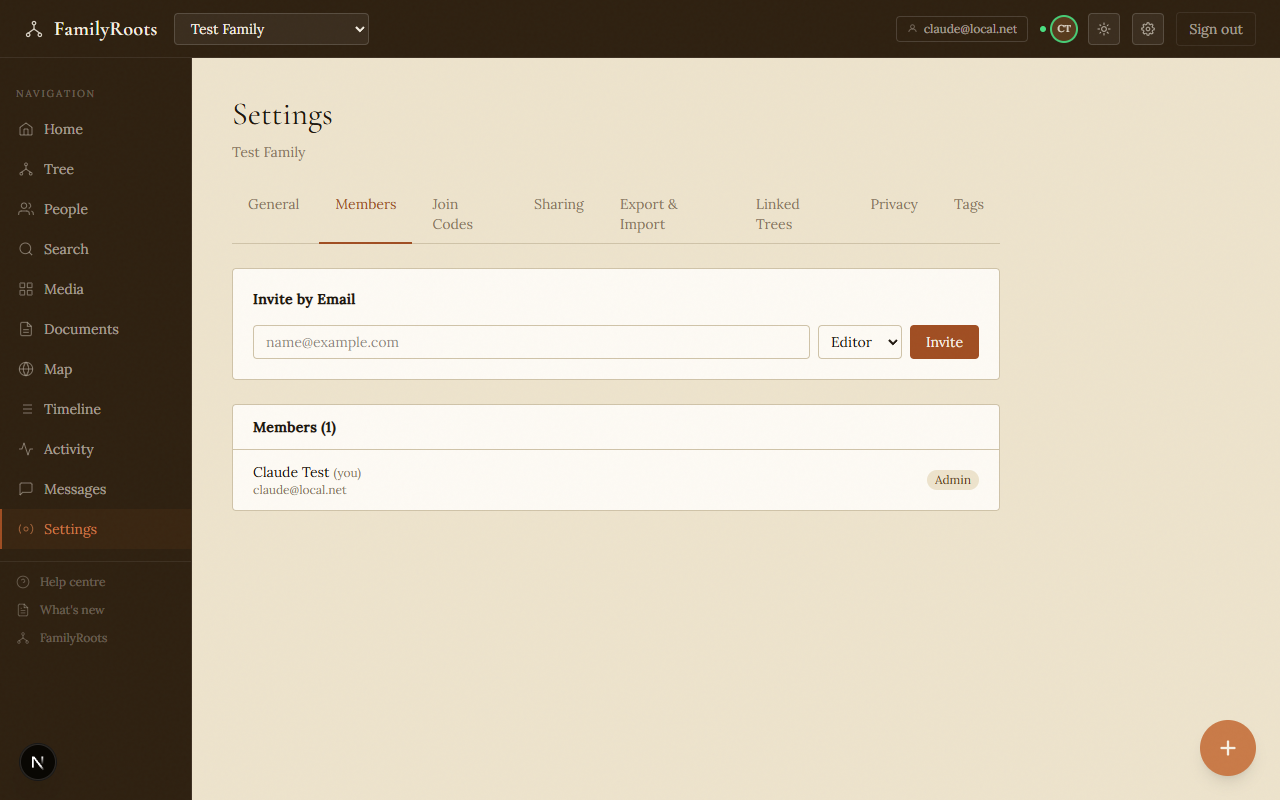
The Members settings tab showing current members and their roles.