Photos & documents
Upload media files and associate them with people in your tree.
Upload a file
- Open a person's profile, go to the Media tab, and click Upload.
- Select one or more files. Maximum size: 50 MB per file.
- Add a caption, date, and place if available.
- Click Save.
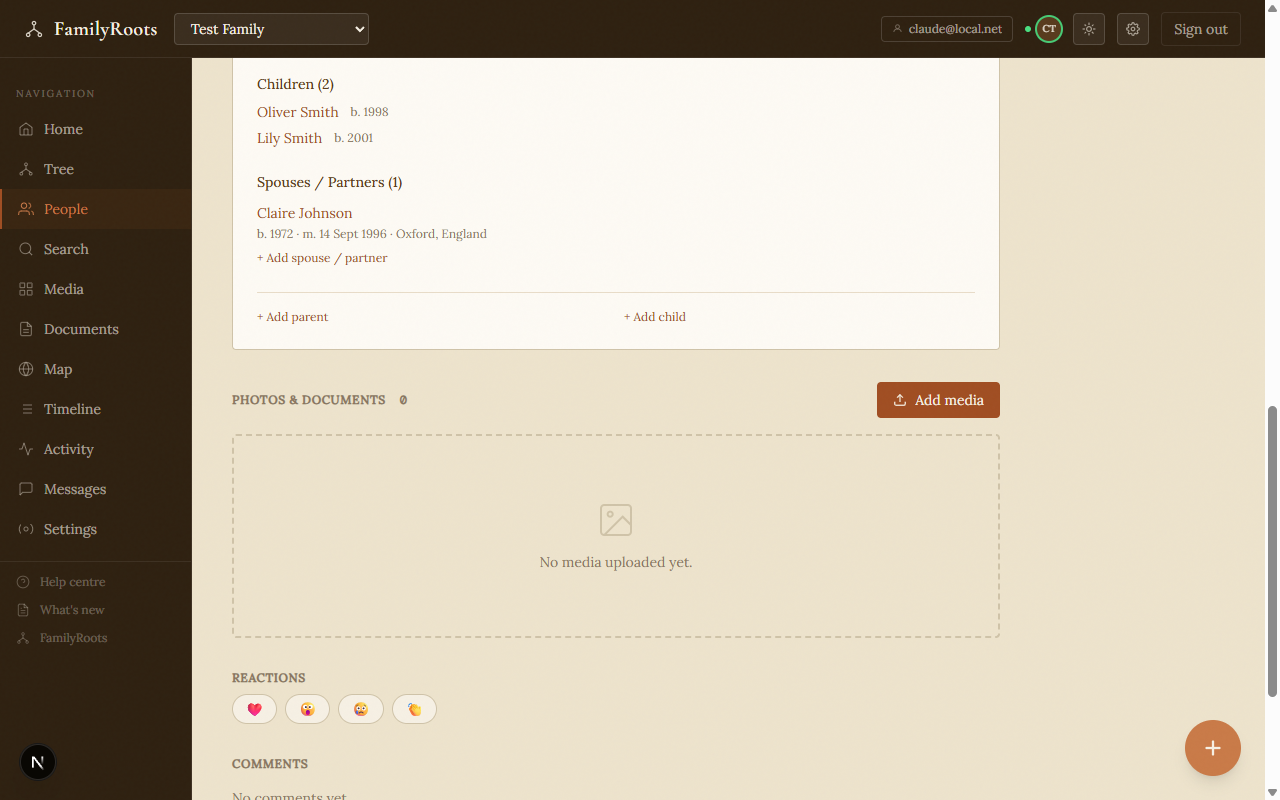
The Media tab on a person's profile with the Add media button.
Classify a document
For each file you can assign a document type to make searching easier:
Birth certificate · Marriage certificate · Census · Military record · Will · Title deed · Other
Add a source (county archive, town hall, private collection…) to record where the document came from.
Link media to a person
From a person's profile — files uploaded in the Media tab are automatically linked to that person.
From the media library — in the sidebar click Media, open the file, then click Link to a person and select the profile.
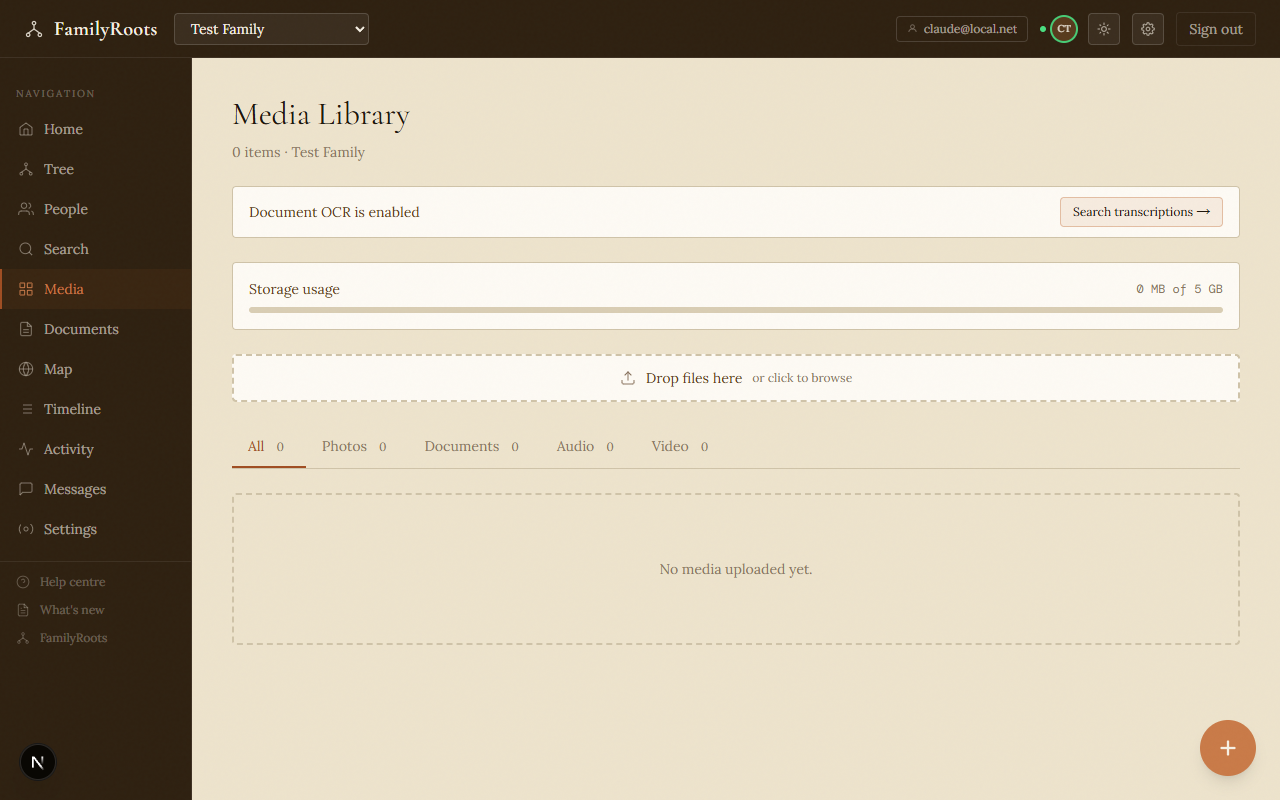
The media library showing all uploaded files across the family group.
Set a portrait
- On a person's profile, in the Media tab, hover the photo.
- Click Set as portrait.
The portrait is shown in tree views and the people list.